C3 Turns Any Block or Symbol Into a Fully Dynamic One

Imported AutoCAD library? User-drawn symbol? A block whose AutoCAD dynamic-block data was stripped during import? It doesn’t matter. C3 makes every symbol dynamic on demand. No scripting. No proprietary parameter syntax. Click vertices on a canvas, choose an axis, save. Done.

Elsewhere, dynamic blocks are something a block either has or doesn’t.

In C3, dynamic blocks are a capability you author yourself — on every symbol you have, in seconds, with the cursor.

Two ways to stretch any placed symbol

9-Grip Universal Stretch

Pick any symbol — instantly get 4 corner grips, 4 edge midpoint grips, and a center move grip. Works on every symbol the moment it’s placed. No setup required.

Drag a corner to scale uniformly. Drag an edge midpoint to stretch one axis. Drag the center to translate. The opposite anchor stays fixed during the drag.

Author-Marked Vertex Handles

Open the Symbol Editor on any symbol. Click vertices to mark them as affected. Choose horizontal or vertical stretch. Save. Every future placement of that symbol gets the same dynamic behavior.

Make a door symbol stretch only its panel width while leaving the frame fixed. Make a window resize independently in width and height. Make a flow-chart shape elongate without distorting its label.

How C3 makes blocks dynamic

C3’s authoring tool is visual and mouse-driven — any user can learn it in under a minute. Click vertices. Pick an axis. Save. The handle is now part of the symbol, persists in the native .symlib format, and works on every machine, every time.

For context: AutoCAD’s Dynamic Blocks are authored through a parameter / action / visibility-state system — a deliberate setup process per block — and that dynamic data travels only between AutoCAD installations. C3 simply takes a different road: dynamism is applied by the user, to any block, after the fact.

And critically — this works on any block C3 has ever loaded:

  • Imported AutoCAD libraries — commercial DWG bundles whose original dynamic-block data was stripped during DXF conversion. Doesn’t matter; C3 makes them dynamic on its own terms.
  • User-drawn symbols — symbols you authored from scratch in C3. Open the editor, mark handles, done.
  • Static legacy blocks — old DWG/DXF files where blocks were never dynamic to begin with. C3 doesn’t care.
  • Hand-drawn one-offs — geometry you grouped and converted to a symbol last week. Same workflow.

Plus: bake any stretched variant into a brand-new reusable symbol

Stretched a door to fit a 42-inch opening? Save Stretched as New Symbol — the displaced geometry becomes its own static .symlib entry, ready to place anywhere. The original symbol with its dynamic handles stays in your library unchanged. Build up a collection of variants without ever touching the source.

And: vertex snap follows your stretches in real time

Every vertex inside a placed symbol — even on stretched-out lines — becomes a vertex snap target in its current displaced world position. Stretch a wall symbol, snap a connecting line directly to its new endpoint, no manual measurement. Every other 2D CAD tool requires you to explode the block first.

The bottom line

Every symbol in C3 is dynamic if you want it to be. Whether it came from an AutoCAD library, a free DWG download, or your own hand, C3 gives every block the same first-class parametric capability — with an authoring tool any user can master in under a minute.

Blocks That Carry Data — and a Drawing That Writes Its Own BOM

Dynamic handles make a symbol’s geometry smart. Attributes make its data smart. Attach fields to any symbol — designator, part number, rating, room number — and every placement carries its own values, ready to be collected into a live parts list or schedule with one command.

Define fields once, on the symbol

The same Symbol Editor that authors stretch handles has an Attributes panel. Each field gets a tag (the future column header), a prompt, a default value, and a choice that most 2D CAD gets wrong: shared vs. per-instance scope. A part number is shared — stored once, every placement shows it, change it once and every instance updates. A designator is per-instance — LED1, LED2, LED3. Fields can render as text labels beside the symbol or stay invisible metadata that still extracts.

Placement prompts with auto-increment

Place a symbol and C3 asks for its values — pre-filled, so Return accepts. Name one LED7 and the next placement offers LED8 automatically, zero-padding preserved (R001 → R002). Placing twenty numbered components means pressing Return twenty times. A toggle turns prompting off for bulk placement; values are editable on any placed symbol afterward.

Extract Attributes → Table: the payoff

One command walks every placed symbol and drops the values into a live, on-canvas table — C3’s full spreadsheet primitive, with its 34-function formula engine and CSV export. Two modes: per instance (one row per placement — door schedules, lighting paperwork) or grouped BOM (identical rows collapse with a quantity count — purchasing lists). Pick your columns, click to place. When the drawing changes, Refresh Extraction Tables rebuilds every extraction table in place — one undoable step, your hand-tuned column widths preserved.
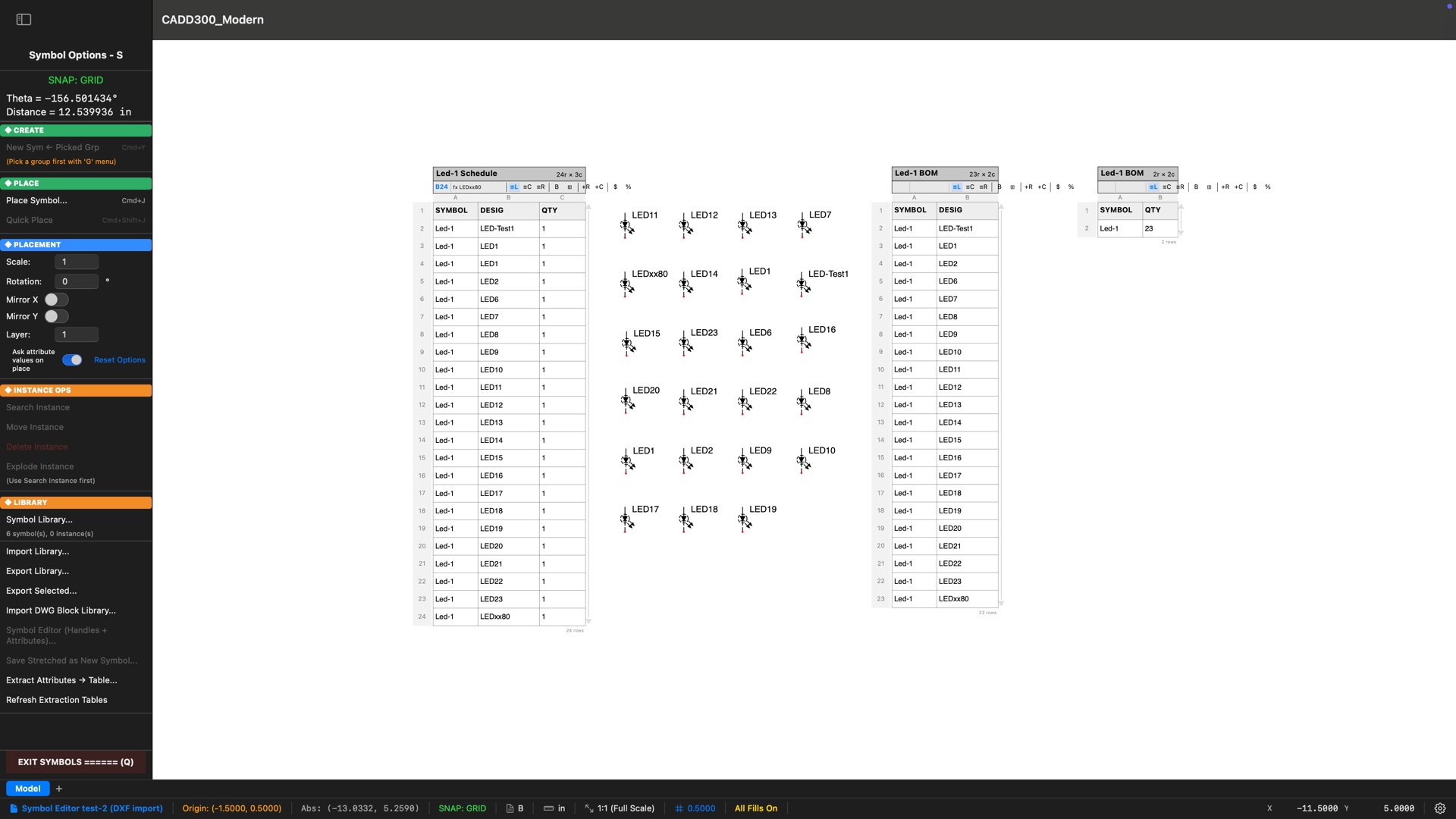
CADD300 Modern with the Symbols menu open showing Extract Attributes to Table and Refresh Extraction Tables, beside three live extraction tables built from 23 labeled LED symbols — a 24-row schedule, a per-designator BOM, and a one-line parts list reading Led-1 quantity 23 — in a drawing round-tripped through DXF import
One drawing, three live documents: a 24-row schedule, a designator BOM, and a one-line parts list (Led-1 × 23) — extracted from the placed symbols by the commands visible in the Symbols menu. And note the status bar: this drawing came back through a DXF round-trip with every value intact.

Round-trips with AutoCAD

AutoCAD blocks with attributes arrive as live C3 attributes — ATTDEF fields become the symbol’s data fields, each INSERT’s ATTRIB values land on that placed instance, immediately editable and extractable. Exporting writes the attributes back out, so AutoCAD’s own attribute editing and data extraction see your data. Title blocks, schematic symbols, and equipment tags keep their intelligence in both directions.

Why it matters

Parts lists, door schedules, equipment tags, cut lists, lighting paperwork — most 2D CAD makes you export to a spreadsheet and maintain it by hand. C3 keeps the document in the drawing, where it prints with the sheet and stays current with one click.
Absorb a Commercial DWG Block Library in Minutes

Drop a folder of DWG files on C3 and it scans every BLOCK definition across every file. Tens of thousands of symbols become instantly usable in your drawings — organized into categories automatically.

Each filename becomes a category. HVAC.dwg populates the HVAC category. Electrical Bundle.dwg becomes Electrical. HydroSanitary Blocks.dwg becomes Hydrosanitary. Every BLOCK inside each file is extracted, named, and ready to place. What used to be a day of manual library setup is a single bulk import.

Tested at scale

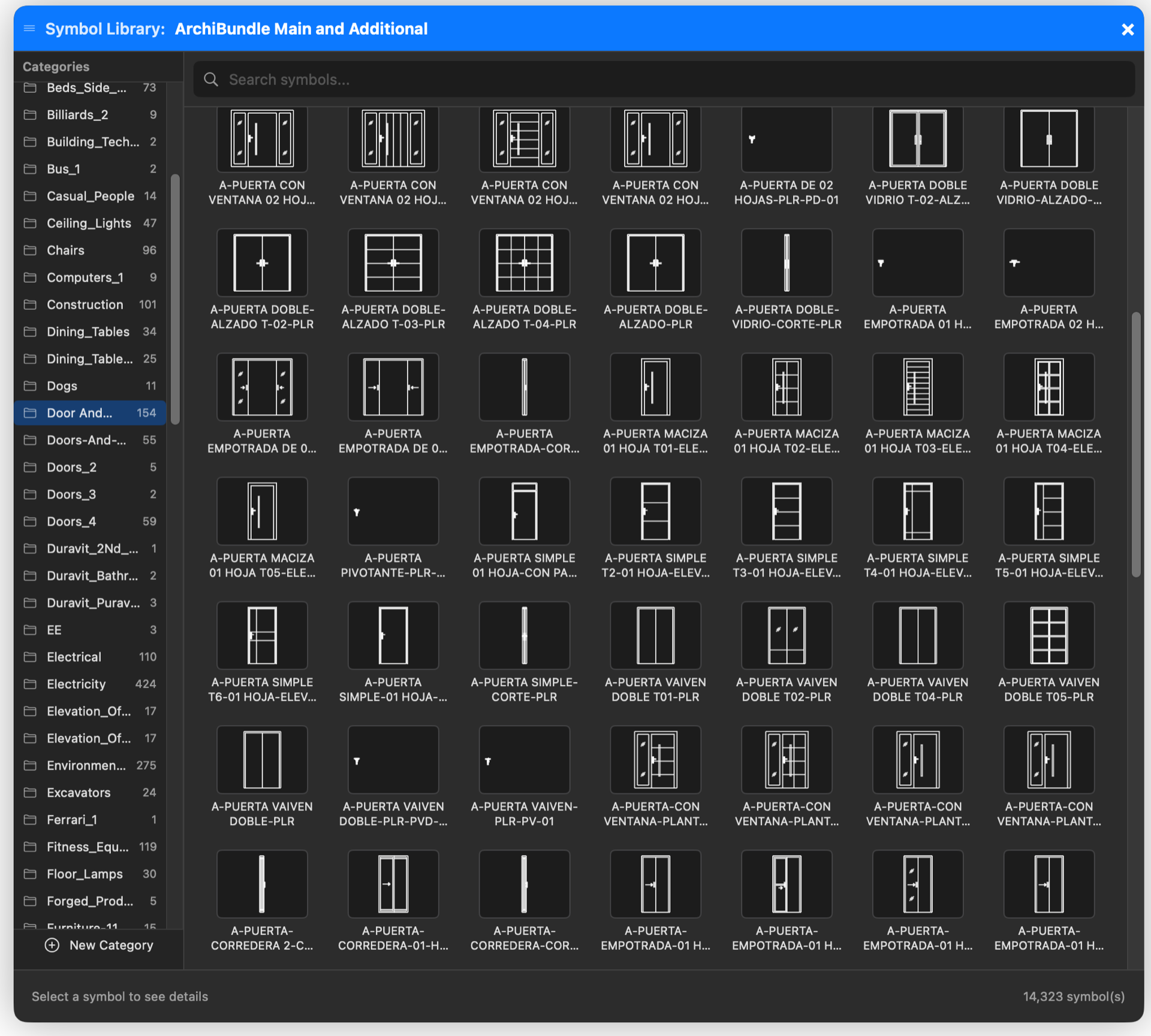
ArchiBundle Main & Additional — a commercial architectural DWG library — imported successfully: 14,320 symbols organized across the library’s many categories, from doors and windows to chairs, electrical, lighting, vehicles, fitness equipment, and dozens more. Only 3 duplicates skipped (same name and category). Multiple commercial libraries from different vendors have been tested with the same result — drop the folder, every block becomes a native C3 symbol.

Convert once, reuse forever. After the initial import, save the entire library as a native C3 .symlib file. Future loads are sub-second — no DWG conversion, no parsing, no waiting. Share the resulting library with colleagues; the format is portable across machines and self-contained.

Selective export. Pick any subset of categories or individual symbols, filter by source file or search text, and export just the parts you need to a focused .symlib for a specific project or workflow. C3 walks the dependency graph automatically — nested symbols and references come along, so the exported library is always self-contained.

CADD300 Modern Symbol Library Browser populated with 14,323 imported DWG blocks, organized into dozens of auto-categorized libraries with searchable thumbnail previews — Doors category selected showing 154 door variations

Symbol Library Browser — 14,323 native C3 symbols from a single ArchiBundle import, auto-organized into dozens of categories with searchable thumbnail previews